Obsidian as a Knowledge Vault: The Field Manual

Stop Taking Notes. Start Building a System.
You have notes scattered across six apps. Half of them are duplicates. The other half are orphans you will never find again. You tell yourself you will organize them “later.” Later never comes.
Obsidian fixes this, but only if you stop treating it like a notepad and start treating it like infrastructure. A knowledge vault is not a collection of files. It is an architecture. It has routing, a hierarchy, an inbox, automated pipelines, and a daily operating rhythm.
This is how to build one that actually works.
What Is Obsidian
Obsidian is a local-first, markdown-based knowledge management application. Your notes are plain .md files on your filesystem. No cloud lock-in. No proprietary format. No subscription required for core functionality.
Why that matters:
- Portability. Your notes work in any text editor, forever. If Obsidian disappears tomorrow, you still have your vault.
- Speed. Local files are instant. No APIA set of rules and protocols that allows different software applications to communicate with each other and share data or functionality. Read more → latencyThe time delay between sending a request and receiving the first byte of the response, typically measured in milliseconds. Read more →, no sync lag on search.
- Privacy. Your data stays on your machine unless you explicitly sync it.
- GitA distributed version control system that tracks changes to files over time, enabling collaboration, branching, and complete history of every modification. Read more →-friendly. Version control your entire knowledge base. Track changes, branch experiments, revert mistakes.
Obsidian’s real power is in its linking system. Every note can reference every other note using [[wikilinks]]. Over time, this creates a graph of connected knowledge that surfaces relationships you would never find in a folder tree.
The ACE Framework
Folder structure is where most people either overthink or underthink. They either create 47 nested folders or dump everything into one pile. Both fail at scale.
The ACE framework (Atlas, Calendar, Efforts) was created by Nick Milo as part of his Linking Your Thinking (LYT) methodology. It is the best organizational model I have found for Obsidian, and the foundation of how my vault is structured. Full credit to Nick for this framework; what follows is how I adapted it.
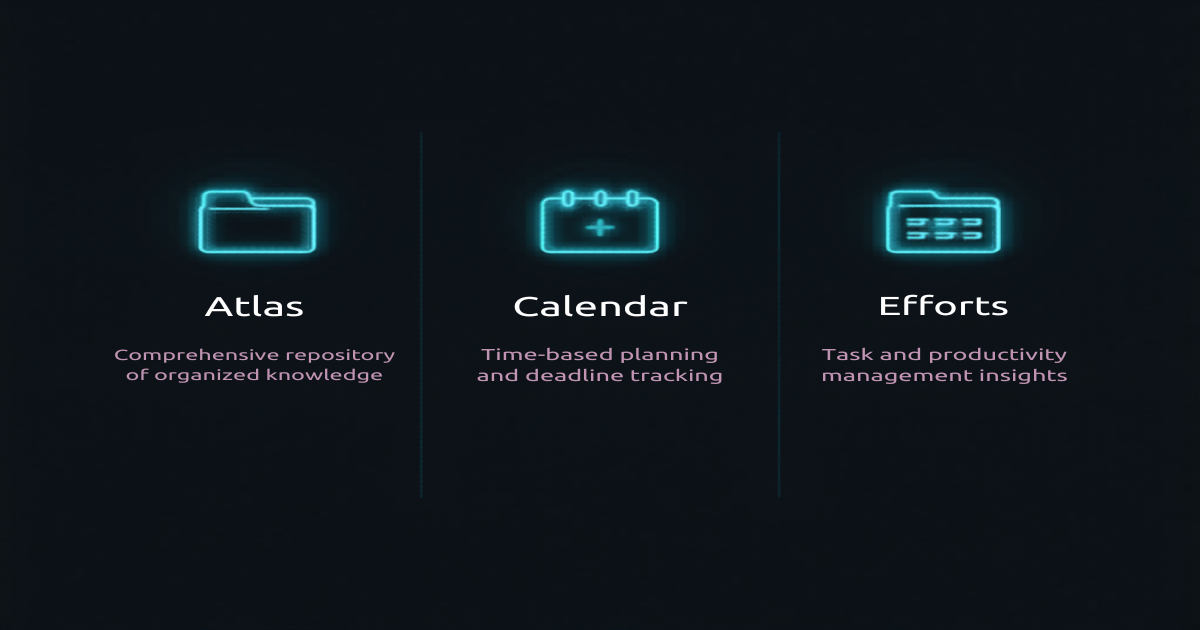
ACE solves the folder problem with three clear domains:
Atlas: What You Know
This is your permanent knowledge base. Reference material, technical notes, how-to guides, concept breakdowns. Organized by topic, not by project or time.
Atlas/
  API Documentation/ # API references and specs
  MOCs/              # Maps of Content (navigation hubs)
  Notes/             # Topic-organized knowledge
    Cyber Security/
    Gaming/
    Hardware/
    Networking/
    Operating Systems/
    Programming/
    Systems Administration/
  Sources/           # Book notes, articles, external references
  Spaces/            # Personal life areas
    About/
    Family/
    Home Office/
    House/
    Military/
    Music/
    Pets/
    Recipes/
MOCs (Maps of Content) are the key innovation here. A MOC is a note that links to all related notes in a topic. Think of it as a manually curated index page. Your “Networking MOC” links to every networking note you have: DNSThe system that translates human-readable domain names into IP addresses so devices can find each other on a network. Read more →, DHCPA protocol that automatically assigns IP addresses and network settings to devices when they connect to a network. Read more →, VPNA virtual private network that creates an encrypted tunnel between your device and a remote network, protecting your traffic from interception. Read more →, wireless, protocols, guides.
MOCs give you a two-hop navigation pattern: Note > MOC > Home. You can always find anything within two clicks.
Calendar: What Happened When
Time-stamped content. Daily notes, meeting notes, weekly reviews. Anything where the date is the primary context.
Calendar/
  Daily Notes/       # YYYY/MM/YYYY-MM-DD.md
  Meeting Notes/     # Organized by entity/project
Daily notes are the heartbeat of the system. More on that below.
Efforts: What You Are Working On
Active projects and initiatives. Each effort gets its own folder with a MOC, tasks, and relevant documentation. When a project wraps up, move it to a Dormant folder. Do not delete it.
Efforts/
  Active/
    Project Alpha/
    Project Bravo/
  Dormant/
    Archived Project/
The Inbox
One more folder outside ACE: the inbox. Call it +Encounters/ or Inbox/. The + prefix keeps it sorted to the top of the file explorer. In my vault, +Encounters/ is the manual capture inbox, and a separate Clippings/ folder at the vault root receives web articles saved by the Obsidian Web Clipper browser extension.
This concept comes from the Zettelkasten method, the slip-box system developed by German sociologist Niklas Luhmann. In Zettelkasten, the inbox is where raw captures land before being processed into permanent, atomic notes. Luhmann used this system to produce over 70 books and 400 academic papers from a single collection of 90,000 handwritten notes. The principle is simple: capture everything, process deliberately, connect intentionally.
Every new note starts here. Raw captures, quick thoughts, meeting dumps. Nothing stays in the inbox permanently. During your daily review, you file each note into the correct ACE location, apply frontmatter, and link it to the appropriate MOC.
If your inbox has more than 20 items in it, you are behind on processing. Fix that.
Frontmatter: Your Metadata Layer
Every note in the vault should have YAMLA human-readable data format used for configuration files, favored for its clean syntax with indentation instead of brackets and braces. Read more → frontmatter. This is non-negotiable. Frontmatter enables search, filtering, Dataview queries, and graph organization.
Standard format:
---
up: "[[Parent MOC]]"
tags:
  - domain/topic
created: 2026-04-09
---
up is the upstream link. It tells you where this note lives in the hierarchy. Your “DNS Deep Dive” note points up to [[Networking MOC]]. The Networking MOC points up to [[Home]]. This creates a navigable chain from any note back to the vault root.
tags use a hierarchical prefix system:
atlas/networking,atlas/cyber-securityfor knowledge noteseffort/project-namefor project notescalendar/daily,calendar/meetingfor time-stamped notesspaces/personalfor life areas
created is the creation date. Simple, but critical for filtering and sorting.
The Daily Note System
This is where most knowledge management systems fall apart. People build beautiful folder structures and then never use them because there is no daily habit to drive input.
The daily note is your operating system. One note per day, auto-generated from a template, structured to capture everything and route it to the right place.
My daily note system is heavily influenced by Dan Martell and his work on time management, the Perfect Week, and shutdown routines. His book Buy Back Your Time and his content on designing your ideal day shaped how I think about daily planning, energy management, and the hard stop. What follows is my adaptation of those principles built directly into Obsidian.
The Rhythm
Night before (15 min): Brain dump, park open loops, set tomorrow’s top 2. Hard stop. Walk away.
Morning (30 min): Hydrate. Brain dump. Confirm priorities. Gratitude. This is not optional. This is how you start the day with intention instead of reaction.
Throughout the day: Capture tasks to the Task Board with context tags. Log meeting notes. Add items to the Ingest Log.
End of day (15 min): What got done. What got punted. One improvement for tomorrow. Check North Star Metrics. Shutdown complete.
Total daily overhead: about 60 minutes. The return on that hour is every other hour of your day being more focused.
Automating the Rhythm
The daily rhythm works. But it has friction. Opening yesterday’s note, copying uncompleted tasks, building the template, filling in navigation links. That is 10 minutes of bookkeeping before you even start thinking. At the end of the day, it is worse: pulling meeting notes, cross-referencing what got done, building tomorrow’s note. That overhead is what kills the habit.
I automated both ends with Claude Code skills: custom command sequences that execute against the vault with full filesystem access.
Morning Stack
One command. The LLMA neural network trained on massive text datasets that can understand and generate human language, powering tools like ChatGPT and Claude. Read more → locates the most recent daily note, extracts the Night Before Shutdown section (brain dump, open loops, tomorrow’s top 2), carries forward any uncompleted tasks from the Task Board with their priority scores intact, and creates today’s daily note from the template. Then it walks through the morning questions one at a time: confirm or drop carried-over tasks, brain dump, today’s top 2, gratitude. Every answer gets written directly into the daily note.
No copy-pasting. No template fiddling. You sit down, run the command, answer the questions, and your day is set.
End of Day Shutdown
Same concept, reverse direction. The LLM reads today’s daily note, gathers completed and uncompleted tasks, pulls meeting transcripts from the day, and creates standalone meeting notes filed into the correct project folder with proper frontmatter and cross-links. It pre-populates “what got done” grouped by project, then walks through the shutdown questions: confirm accomplishments, identify what got punted, one thing to do differently, North Star Metrics check, brain dump, open loops, and tomorrow’s top 2 priorities.
Once complete, it writes everything to today’s daily note and creates tomorrow’s note pre-filled with the Night Before Shutdown section and the carried-over Task Board.
Where the Data Comes From
The skills do not operate in a vacuum. They pull from multiple sources to build a complete picture of your day.
The vault itself. The LLM reads the previous daily note to extract carried-over tasks, open loops, and planned priorities. It reads the Task Board to know what is still incomplete and what priority scores are assigned. It reads the Night Before Shutdown section to know what you brain-dumped before bed. All of this is just markdown files on disk; the LLM parses them directly.
Meeting transcription services. If you use a meeting recorder (Granola, Otter.ai, Fireflies, or any tool that produces transcripts), the EOD skill can pull the day’s meetings via API or MCPAn open standard for connecting AI assistants to external data sources and tools, enabling them to access real-time information and take actions. Read more → connector, extract key decisions and action items, and generate structured meeting notes. The richer your transcript source, the better the output. At minimum, you need attendee names, a title, and a transcript or summary. The LLM handles the rest: routing the note to the right project folder, applying frontmatter, cross-linking to related vault content.
Calendar integrations. Connected calendars (Google Calendar, Outlook, iCloud) give the LLM context on what meetings happened, when, and with whom. This lets it cross-reference transcripts against your schedule and fill gaps where a meeting was on the calendar but no transcript exists.
Email and messaging. If you connect email or Slack via MCP, the LLM can surface action items or threads relevant to your open tasks. This is optional but useful for catching things that did not make it into the Task Board during the day.
The schema file. The skill definition itself tells the LLM how to route notes, what frontmatter to apply, what folder structure to follow, and what questions to ask. Change the schema, change the behavior. No code changes required.
The more sources you connect, the more complete the daily note becomes. Start with just the vault and add integrations as you need them. The system works at any level of connectivity.
Why This Matters
The daily note system described above is a 60-minute manual process. With automation, the human input drops to the parts that actually require thinking: answering the questions, making decisions about priorities, and reflecting on the day. The LLM handles the rest. File creation, task carryover, meeting note extraction, cross-linking, template population. All the bookkeeping that causes people to abandon the habit after two weeks.
The skills are just text files that describe the workflow. The LLM reads the instructions, reads the vault, and executes. No custom code, no API integrations, no build step. If the workflow needs to change, you edit the skill file. The LLM adapts on the next run.
The Priority Matrix
The Task Board is not a to-do list. It is a scoring system.
Each task gets scored on two axes:
- Impact (1-3): How much does completing this move the needle?
- Urgency (1-3): How time-sensitive is it?
Score = Impact x Urgency. Highest score gets done first. Ties go to the task with higher impact.
This prevents the common failure mode of spending all day on urgent-but-low-impact tasks while the important work sits untouched.
For more complex tasks, use RICE scoring:
- Reach: How many people/systems does this affect?
- Impact: How significant is the effect?
- Confidence: How sure are you about the estimates?
- Effort: How much time/resources required?
RICE Score = (Reach x Impact x Confidence) / Effort
Plugins That Matter
Obsidian’s plugin ecosystem is massive. Most of it is noise. Here are the ones that earn their keep, organized by function.
Core Data Layer
Dataview
The single most important plugin. Dataview lets you write queries against your vault metadata and render dynamic tables, lists, and task views.
Example: Show all notes created this week in your Networking folder:
TABLE WITHOUT ID
  link(file.link, file.name) AS "Note",
  dateformat(file.ctime, "MMM dd") AS "Added"
FROM "Atlas/Notes/Networking"
WHERE file.ctime >= date(today) - dur(7 days)
SORT file.ctime DESC
Your Home note becomes a live dashboard. Overdue tasks, notes created today, effort status, meeting history. All generated dynamically from your actual notes.
Tasks
Tasks turns markdown checkboxes into a full task management system with due dates, priorities, recurrence, and global queries. Your Home note can aggregate every open task across the entire vault using context tags, grouped by project, with overdue, due today, and due this week views.
Daily Operations
Templater
Templater is a template engine with variable interpolation and logic. Your daily note template auto-generates the date, day of week, previous/next day navigation links, and Dataview queries specific to that date. Templates live in Extras/Templates/ and use tp.file.title to derive the date from the filename.
Without Templater, you are manually creating structured notes every day. That friction kills the habit within a week.
Calendar and Periodic Notes
Calendar gives you a visual sidebar for navigating daily notes. Click a date, jump to that note. Periodic Notes extends this with weekly, monthly, and quarterly note templates on the same calendar interface.
Day Planner
Day Planner lets you time-block your tasks directly in the daily note. Renders a visual timeline from markdown task lists with time annotations.
Knowledge and Search
Omnisearch
Omnisearch is full-text search that actually works. Obsidian’s built-in search is decent. Omnisearch is better, especially in large vaults.
Smart Connections
Smart Connections provides AI-powered note linking. It surfaces semantically related notes you might not have linked manually. Useful for finding connections across domains that keyword search would miss.
Visual and Editing
Excalidraw
Excalidraw provides embedded diagramming directly inside Obsidian. Network topologies, architecture decisions, flowcharts, mind maps. The diagrams live as .excalidraw.md files in your vault, linked to the context they belong to.
Advanced Tables
Advanced Tables makes editing markdown tables tolerable. Tab between cells, add/remove rows and columns without fighting pipe characters.
Outliner
Outliner enhances bullet list editing with folding, indenting, and reordering shortcuts. Turns Obsidian into an outliner when you need it.
Iconize and Style Settings
Iconize adds visual icons to folders and files in the file explorer for faster scanning. Style Settings exposes theme customization options as a settings panel.
Integration Layer
Local REST API
Local REST API exposes your vault to external tools via HTTP. This is how you integrate Obsidian with automation platforms, scripts, or AI tools. Programmatic access to create, read, and update notes without opening Obsidian.
MCP Tools
MCP Tools provides Model Context Protocol integration. This lets LLM agents interact with your vault through a standardized tool interface. Combined with the Local REST API, it is the bridge that makes the LLM Wiki pattern work with agents that do not have direct filesystem access.
For the full list of tools, software, and services that power the lab (including Obsidian), check the Tools and Resources page.
MOCs: The Navigation Layer
Maps of Content deserve their own section because they are the difference between a vault you use and a vault you abandon.
A MOC is a note that serves as a curated index for a topic. It is not auto-generated. You maintain it manually, which forces you to think about how your knowledge connects.
Example structure for a Networking MOC:
---
up: "[[Home]]"
tags:
  - MOC
  - atlas/networking
created: 2026-01-15
---

# Networking

## Fundamentals
- [[DNS Deep Dive]]
- [[DHCP Architecture]]
- [[Subnetting Reference]]

## Protocols
- [[802.1X Authentication]]
- [[WPA3 Hardening]]
- [[BGP Basics]]

## Lab
- [[VLAN Design]]
- [[Homelab Network Topology]]
- [[VPN Comparison]]

## Guides
- [[Firewall Rule Methodology]]
- [[Packet Capture Workflow]]
When you create a new networking note, you add it to this MOC. When you need to find something about networking, you start here. The MOC is your table of contents for that domain.
Aim for one MOC per major knowledge area. Six to twelve MOCs is the sweet spot for most people. More than twenty and you are over-indexing.
The Graph View
Obsidian’s graph view visualizes every note and link in your vault as a network diagram. It looks impressive in screenshots. Its real value is diagnostic.
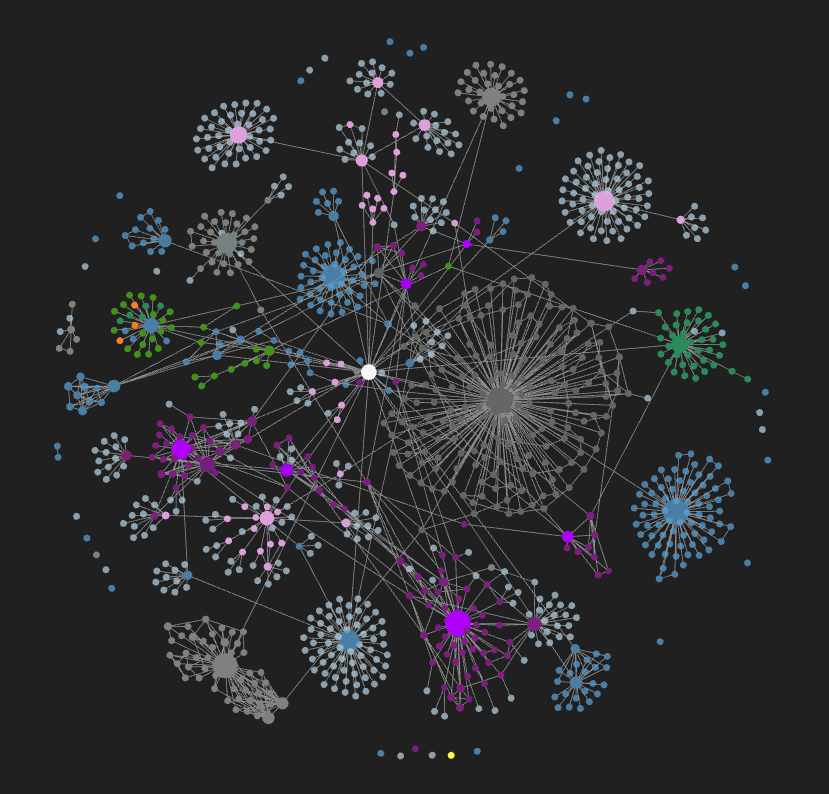
Use the graph to find:
- Orphan notes. Notes with no links in or out. These need to be filed and connected, or deleted.
- Clusters. Dense clusters indicate well-developed knowledge areas. Sparse areas are gaps.
- Bridge notes. Notes that connect two otherwise separate clusters. These are often your most valuable notes because they represent cross-domain insights.
Color-code your graph groups by domain (knowledge, efforts, calendar, personal) so you can visually scan the balance of your vault at a glance.
The Weekly Review
Once a week, step back from the daily notes and review at a higher altitude.
Last week:
- Did you hit your North Star Metrics?
- What worked? What broke down?
- What patterns need to die?
This week:
- Two objectives per active project. No more.
- Project health check: Red, Yellow, Green for each effort.
- Blockers identified and escalation planned.
Environment audit:
- Is your workspace set up for deep work?
- Are your calendar blocks protecting focus time?
- What are you avoiding?
The weekly review takes 30 to 45 minutes. It prevents drift. Without it, you will slowly stop using the daily notes, the task board goes stale, and the vault becomes a graveyard of good intentions.
Scaling the Vault
A vault with 50 notes works no matter how you organize it. A vault with 500 notes exposes every structural weakness. A vault with 5,000 notes either runs like a machine or collapses under its own weight.
Rules for scale:
Frontmatter on everything. No exceptions. Notes without metadata are invisible to Dataview and useless for automation.
File before you forget. Process your inbox daily. A note left in the inbox for a week is a note that will never be filed.
Link aggressively. Every note should link to at least one MOC and one related note. Isolated notes are wasted notes.
Prune regularly. Delete notes that add no value. Merge duplicates. Update stale content. A lean vault is a fast vault.
Templates for everything repeatable. Daily notes, meeting notes, project kickoffs, task breakdowns. If you create the same structure more than twice, it needs a template. Store them in a dedicated folder (mine lives at Extras/Templates/) and use the Templater plugin to auto-populate dates, navigation links, and Dataview queries on creation.
The LLM Wiki: Letting AI Maintain Your Vault
Everything above is manual. You build the structure, you file the notes, you maintain the MOCs, you process the inbox. It works. It also creates a maintenance burden that grows with every note you add. Cross-references go stale. Summaries fall behind. Connections get missed because you forgot what you wrote six months ago.
This is the problem Andrej Karpathy addressed in his LLM Wiki pattern: a framework where LLMs incrementally build and maintain a persistent, interlinked wiki on top of your raw sources. Instead of retrieving from documents on every query (the standard RAG approach), the LLM compiles knowledge once and keeps it current. Cross-references are already there. Contradictions are already flagged. The synthesis reflects everything in the vault.
As Karpathy puts it: “The tedious part of maintaining a knowledge base is not the reading or the thinking; it is the bookkeeping.” LLMs handle that bookkeeping at near-zero cost.
I integrated this pattern directly into my Obsidian vault. Here is how it works alongside the ACE framework.
The Three-Layer Architecture
Karpathy’s pattern defines three layers that map cleanly onto what already exists in the vault:
Raw sources. Your curated collection of source documents: articles, papers, transcripts, data files. These are immutable. The LLM reads from them but never modifies them. In the ACE framework, these live in Atlas/Sources/ and +Encounters/ (the inbox).
The wiki. LLM-generated markdown files: summaries, entity pages, concept pages, comparisons, synthesis documents. The LLM owns this layer. It creates pages, updates them when new sources arrive, maintains cross-references, and keeps everything consistent. In my vault, these pages land in Atlas/Notes/ organized by topic, with proper frontmatter and MOC links.
The schema. A configuration document that tells the LLM how the wiki is structured, what conventions to follow, and what workflows to execute. If you are using Claude Code, this is your CLAUDE.md. For OpenAI Codex, it is AGENTS.md. The schema describes your folder structure, frontmatter conventions, routing rules, and operational workflows in the format that agent expects. This is the difference between a disciplined wiki maintainer and a generic chatbot. You and the LLM co-evolve it over time.
The Core Operations
Ingest. Drop a new source into the raw collection and tell the LLM to process it. The LLM reads the source, writes a summary page, updates the index, updates relevant entity and concept pages across the wiki, and appends an entry to the log. A single source can touch 10 to 15 wiki pages. I prefer to ingest one source at a time and stay involved, checking summaries and guiding emphasis. Batch ingestion with less supervision is also viable.
Query. Ask questions against the wiki. The LLM searches relevant pages, reads them, and synthesizes an answer with citations. The critical insight from Karpathy: good answers should be filed back into the wiki as new pages. A comparison you asked for, an analysis, a connection you discovered. These compound in the knowledge base instead of disappearing into chat history.
Lint. Periodically, the LLM health-checks the wiki. It looks for contradictions between pages, stale claims superseded by newer sources, orphan pages with no inbound links, important concepts that lack their own page, and missing cross-references. It also suggests new questions to investigate and new sources to seek out.
How This Integrates With ACE
The LLM Wiki pattern does not replace the ACE framework. It automates the parts of ACE that humans abandon. The bridge between the two is the ingest operation.
The Ingest Skill
This is the workhorse. You point the LLM at a source (a file in your inbox, a URL, pasted text, a meeting transcript) and tell it to ingest. The LLM executes a defined sequence:
1. Analyze. Read the source. Extract the title, key concepts, source type (article, meeting, video, book, transcript, note), any actionable items, and which knowledge domains it touches.
2. Route. Determine where the note belongs in the ACE structure. Meeting with attendees and a date goes to Calendar/Meeting Notes/. Technical knowledge matching an existing MOC topic goes to Atlas/Notes/<Topic>/. External reference material goes to Atlas/Sources/. Project-specific content goes to Efforts/Active/<Project>/. The routing rules are defined in the schema file, not hardcoded. Change the rules, change the behavior.
3. Build frontmatter. Construct the YAML metadata: up: link to the parent MOC, hierarchical tags, creation date, source type, source URL or file path, and an ingested date. Every note gets the full metadata layer from the moment it is created. No cleanup pass needed later.
4. Write and link. Create the note with organized content sections, wikilinks to related existing notes (found by searching the vault), and an Action Items section if tasks were extracted. Tasks get formatted with project context tags and due dates where applicable.
5. Update the MOC. Read the parent MOC and add a wikilink to the new note in the appropriate section. This is the step humans skip. The LLM does not skip it.
6. Log the ingest. Append an entry to today’s daily note under the Ingest Log section: timestamp, what was ingested, where it was filed, which MOC was updated. This creates a chronological record of everything that entered the vault and where it went.
7. Mark the source. If the source came from the inbox (+Encounters/), the LLM marks it as processed in its frontmatter. The original is never deleted. You always have the raw source to reference.
Duplicate Detection and Edge Cases
Before creating a note, the LLM searches the vault for existing notes with the same or similar title. If a match is found, it asks whether to merge, rename, or skip. For large sources (over 2,000 words), it creates a summary with key takeaways instead of a verbatim copy, linking back to the original. If the content spans multiple projects, it files under the primary and cross-links to the secondary. If the content does not fit any existing MOC, it suggests creating a new one.
What This Means for Inbox Processing
The inbox (+Encounters/) is where raw captures land. Without the ingest skill, you process them manually: read the note, decide where it goes, move it, add frontmatter, link it to a MOC, update the MOC. That is five steps per note. Fall behind for a week and you have 20 unfiled notes. Fall behind for a month and the inbox is a graveyard.
With the ingest skill, you point the LLM at an inbox item and it handles all five steps. One command per note. Batch through the whole inbox in minutes instead of an hour.
MOC Maintenance
The ingest skill handles this as a side effect. Every time the LLM creates or updates a note, it also updates the corresponding MOC. No more stale navigation hubs. No more orphan notes sitting outside the link graph because you forgot to add them to the index.
Meeting Note Processing
Meeting transcripts get ingested through the same pipeline. The LLM creates structured meeting notes with attendees, key decisions, discussion sections organized by topic, and action items. The note gets filed into the correct project folder, linked to the parent MOC, and cross-referenced against related vault content. If you are already using the EOD shutdown skill described earlier, meeting ingestion happens automatically at the end of each day.
Two Index Files
Karpathy recommends index.md (a content-oriented catalog of every wiki page with one-line summaries) and log.md (an append-only chronological record of ingests, queries, and lint passes). The index replaces embedding-based search at moderate scale. The log gives you a timeline of the wiki’s evolution. In the ACE vault, the daily note’s Ingest Log serves the same purpose as log.md, and the MOCs collectively serve as the index.
The Workflow in Practice
Karpathy describes the working arrangement: “I have the LLM agent open on one side and Obsidian open on the other. The LLM makes edits based on our conversation, and I browse the results in real time, following links, checking the graph view, reading the updated pages. Obsidian is the IDE; the LLM is the programmer; the wiki is the codebase.”
That is exactly how I run it. Claude Code (or any LLM agent with filesystem access) operates on the vault files. Obsidian renders them in real time with graph view, backlinks, and Dataview queries. The human curates sources, directs analysis, and asks the right questions. The LLM does the filing, cross-referencing, and bookkeeping.
Scaling With LLM Maintenance
This changes the scaling equation entirely. The manual rules from the previous section still apply: frontmatter on everything, link aggressively, prune regularly. But the LLM handles the bulk of that work. A vault with 5,000 notes is no longer a maintenance nightmare when the LLM can touch 15 files in one pass without getting bored, forgetting a cross-reference, or losing context.
The idea traces back to Vannevar Bush’s Memex (1945): a personal, curated knowledge store with associative trails between documents. Bush’s vision was closer to this than to what the web became. Private, actively curated, with the connections between documents as valuable as the documents themselves. The part he could not solve was who does the maintenance. The LLM handles that.
The Bottom Line
Obsidian is not a note-taking app. It is a knowledge operating system. The ACE framework gives it structure. The daily rhythm gives it input. The LLM Wiki pattern gives it a maintenance engine that scales.
Build the ACE framework. Set up your frontmatter standard. Create your MOCs. Use your daily note every single day. Review weekly. Prune monthly. Then hand the bookkeeping to an LLM and focus on what humans are actually good at: sourcing, exploring, and thinking.
The vault is not the goal. The goal is to think more clearly, decide more quickly, and never lose track of what matters.
The vault is just the infrastructure that makes that possible.